
How to Make a Photo Collage on iPhone (No App Needed, 100% Free)
iPhone पर फ़ोटो कोलाज कैसे बनाएं (बिना किसी ऐप के, बिल्कुल मुफ़्त)
Does the iPhone Photos app have a built-in collage button? No. Even in iOS 17 and iOS 18, Apple does not include a direct collage maker inside the Photos app. The quickest, 100% free solution without downloading paid App Store apps is using photocollage.in right inside Safari. It handles Apple HEIC photos automatically, offers Indian festival frames, adds Hindi/English captions, and exports full HD collages without watermarks.
क्या iPhone के Photos ऐप में कोलाज बनाने का बटन होता है? नहीं, iOS 17 और iOS 18 में भी Apple ने Photos ऐप में कोई सीधा कोलाज बटन नहीं दिया है। बिना किसी पैसे वाले ऐप को डाउनलोड किए इसका सबसे आसान और मुफ़्त तरीका है Safari ब्राउज़र में photocollage.in खोलना। यह बिना किसी ऐप के तुरंत HEIC फ़ोटो को सपोर्ट करता है, वॉटरमार्क नहीं लगाता और त्योहारों के सुंदर फ़्रेम देता है।
Almost every iPhone user eventually asks: 'How do I combine my favorite photos into a single collage on my iPhone?' You open the Photos app, select three or four pictures, tap Share... and realize there is no collage option anywhere. Apple has never built a native collage feature into the Photos app. While the App Store has hundreds of collage apps, almost all of them bombard you with ads, demand $4.99/week subscriptions, or plaster giant watermarks over your precious memories.
ज़्यादातर iPhone यूज़र्स के मन में यह सवाल ज़रूर आता है: 'मैं अपने iPhone में 3-4 तस्वीरों को जोड़कर एक सुंदर कोलाज कैसे बनाऊं?' जब आप Photos ऐप खोलते हैं, फ़ोटो चुनते हैं और शेयर बटन दबाते हैं, तो वहाँ कोलाज का कोई विकल्प नहीं मिलता। Apple ने Photos ऐप में कभी भी सीधा कोलाज मेकर नहीं दिया है। वहीं दूसरी तरफ़, App Store के ज़्यादातर ऐप्स विज्ञापनों से भरे होते हैं और वॉटरमार्क हटाने के लिए हर हफ़्ते पैसे मांगते हैं।
The good news? You do NOT need to install any heavy app from the App Store. In this guide, you will learn the three best methods to create photo collages on your iPhone: our recommended Safari web method (fastest, zero storage, full creative control), the Apple Shortcuts automation method, and the Apple Freeform canvas method.
Ready to make your iPhone collage right now?
बिना किसी ऐप के तुरंत Safari में कोलाज बनाना शुरू करें — 100% मुफ़्त।
3 Ways to Make a Photo Collage on iPhone
आईफ़ोन पर फ़ोटो कोलाज बनाने के 3 सबसे प्रभावी तरीके
The Safari Web Editor: Fastest, Free & Zero Watermark
Make collages directly in iOS Safari on photocollage.in. No download, no account, automatic HEIC conversion, and Indian festival borders.
Advantages (फायदे)
- •100% free with zero watermarks or ads
- •No phone storage consumed — runs directly in Safari
- •Automatically converts Apple HEIC photos to standard JPEG
- •Dedicated aspect ratios for WhatsApp Status (9:16) & DP (1:1)
- •Bilingual Hindi & English festival text support
Limitations (सीमाएं)
- •Requires internet access to initially load the web editor
The Apple Shortcuts App: Built-in Grid Stitcher
Use Apple's pre-installed Shortcuts app to stitch photos together side-by-side or in a simple grid without third-party tools.
Advantages (फायदे)
- •Pre-installed on every modern iPhone (iOS 13+)
- •Works completely offline without an internet connection
- •No third-party accounts or downloads needed
Limitations (सीमाएं)
- •Extremely basic: only creates plain rectangular grids
- •No border controls, spacing adjustments, or corner rounding
- •Cannot drag to reposition photos or crop individual slots
- •Requires manual shortcut creation or finding a trusted link
Apple Freeform Canvas: Freeform Moodboard (iOS 16.2+)
Arrange photos freely on an infinite whiteboard canvas using Apple's official Freeform app.
Advantages (फायदे)
- •Pre-installed on iOS 16.2 and newer
- •Allows freeform rotation, overlapping, and sticky notes
- •Full sync across iPhone, iPad, and Mac via iCloud
Limitations (सीमाएं)
- •Designed for mind-mapping, not photo printing or social status
- •No snap-to-grid collage templates or fixed aspect ratios
- •You have to take a manual screenshot to save it as a photo
- •Screenshots result in lower resolution and black border bars
Making Collages in iOS Safari: Step-by-Step Visuals
आईफ़ोन सफारी में कोलाज बनाने का सचित्र तरीका

Mobile 9:16 Vertical Story Layout
मोबाइल 9:16 वर्टिकल स्टोरी लेआउट
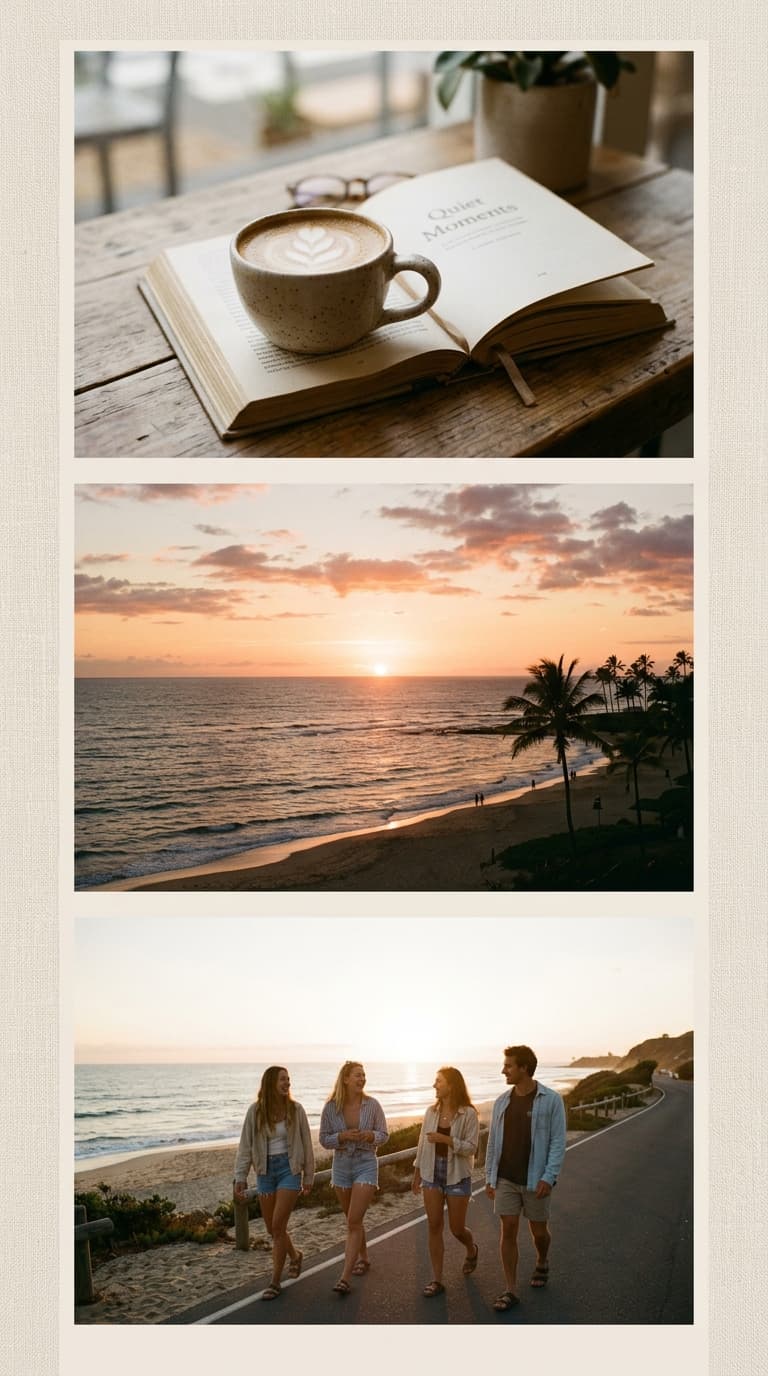
Clean Aesthetic Multi-Photo Grid
सटीक और साफ़-सुथरा मल्टी-फ़ोटो ग्रिड

Polaroid Style Collage on iPhone
आईफ़ोन पर पोलेरॉइड स्टाइल कोलाज
Select multiple HEIC and JPEG photos directly from Apple Photos without compression.
Step-by-Step: How to Make iPhone Collages in Safari
- 1
Open Safari and Go to photocollage.in
Launch Safari on your iPhone and visit photocollage.in. The mobile interface is custom-tailored for touch screens, with no account registration or payment required.
- 2
Tap 'Upload Photos' from Your Camera Roll
Tap the upload area. Select between 2 and 9 photos directly from your Apple Photos library. You can pick standard JPEGs, Live Photos, or Apple's default HEIC images — the editor converts them automatically in your browser.
- 3
Pick Your Canvas Aspect Ratio
Choose the exact canvas size for where you want to share: 1:1 Square (ideal for WhatsApp profile picture or Instagram grid), 9:16 Vertical (perfect for WhatsApp Status, Instagram Story, or iPhone lock screen), or 4:5 Portrait.
- 4
Select a Frame or Festive Template
Pick a modern minimalist grid, an artistic scatter layout, or an Indian festival frame (Diwali, Rakhi, Wedding, Birthday). Adjust photo spacing and border radius with smooth touch sliders.
- 5
Adjust Positions & Add Bilingual Captions
Drag any photo to reposition it within its slot. Pinch or zoom to get faces perfectly centered. Type wishes, dates, or greetings in English or Hindi Devanagari script.
- 6
Download & Save to Photos
Tap 'Download Collage'. Your high-resolution image saves directly to your iPhone's camera roll in full HD. You can also tap the native iOS Share sheet to send it straight to WhatsApp, iMessage, or Instagram.
सफ़ारी में कोलाज बनाने का क्रमवार तरीका
- 1
Safari में photocollage.in खोलें
अपने iPhone में Safari ब्राउज़र खोलें और सीधे photocollage.in पर आएं। यह मोबाइल स्क्रीन के लिए बहुत हल्का और सहज बनाया गया है।
- 2
कैमरा रोल से 2 से 9 फ़ोटो चुनें
'फ़ोटो अपलोड करें' पर टैप करें। अपनी गैलरी से 2 से 9 मनपसंद तस्वीरें चुनें — HEIC या नॉर्मल फ़ोटो अपने आप लोड हो जाएंगी।
- 3
सोशल मीडिया या स्टेटस के हिसाब से साइज़ चुनें
WhatsApp DP के लिए 1:1 स्क्वायर या WhatsApp स्टेटस / Instagram स्टोरी के लिए 9:16 वर्टिकल साइज़ चुनें।
- 4
मनपसंद फ़्रेम व लेआउट चुनें
साफ़-सुथरा ग्रिड, मॉडर्न पोलारॉइड या भारतीय त्योहार (दिवाली, शादी, जन्मदिन) का फ़्रेम चुनें। स्लाइडर से फ़ोटो के कोनों को गोल करें।
- 5
फ़ोटो सेट करें और हिंदी में नाम या शुभकामना लिखें
फ़ोटो को ड्रैग करके सही जगह बिठाएं। चेहरे को बीच में लाएं और हिंदी या अंग्रेज़ी में बधाई संदेश या तारीख जोड़ें।
- 6
डाउनलोड करें और तुरंत WhatsApp पर भेजें
'कोलाज डाउनलोड करें' पर टैप करते ही यह आपके Photos ऐप में हाई-क्वालिटी में सेव हो जाएगा।
Comparison: 4 Ways to Make Collages on iPhone
| Feature | Safari (photocollage.in) | Apple Shortcuts | Apple Freeform | App Store Apps |
|---|---|---|---|---|
| Price | 100% Free Forever | 100% Free | 100% Free | Paid / Subscription ($4.99/wk) |
| Watermark | None (Clean Export) | None | None (Screenshot) | Often Watermarked |
| Storage Used | 0 MB (No App) | 0 MB (Built-in) | 0 MB (Built-in) | 150 MB - 300 MB |
| HEIC Conversion | Automatic & Instant | Native | Native | Varies |
| Layout Variety | Grid, Freeform & Festival | Basic Grid Only | Blank Canvas Only | Templates Locked Behind Paywall |
| Hindi / Vernacular Fonts | Supported (Devanagari) | Not Supported | Basic Fonts Only | Rarely Supported |
| WhatsApp Status (9:16) | 1-Click Preset | Manual Crop Needed | Manual Crop Needed | Some Presets (Paid) |
iPhone Photo Collage Size Guide for Social Media & Wallpaper
Optimal resolutions for crisp display on iPhone, WhatsApp, and Instagram.
WhatsApp Profile Picture (DP)
1:1 SquareTarget: 1080 × 1080 px
💡 Keep important faces centered so WhatsApp's circular crop does not cut anyone off.
WhatsApp Status & Instagram Story
9:16 VerticalTarget: 1080 × 1920 px
💡 Fills the entire iPhone screen edge-to-edge with no ugly black borders.
Instagram Feed Post
4:5 Portrait or 1:1 SquareTarget: 1080 × 1350 px
💡 4:5 portrait occupies the maximum screen real estate on mobile feeds for higher engagement.
iPhone Lock Screen Wallpaper
19.5:9 Ultra-TallTarget: 1170 × 2532 px
💡 Leave the top 25% clear for the iOS digital clock and lock screen widgets.
iPhone Collage Troubleshooting & Pro Tips
1. How to avoid blurry collages when sharing to WhatsApp?
WhatsApp automatically compresses images. When sending your finished collage on WhatsApp, tap the HD button at the top of the photo preview screen, or share it as a Document to retain 100% of the original resolution.
2. Photos showing black boxes or format errors?
Older iOS versions sometimes restrict HEIC memory buffers. Simply re-select the photos in Safari, or set your iPhone Camera settings to Most Compatible (Settings → Camera → Formats). Our online tool automatically converts HEIC client-side.
3. Want to print your iPhone collage on photo paper?
Export your collage from photocollage.in in the Portrait 4:5 or Square 1:1 aspect ratio. These scale perfectly to standard 4x6 inch, 5x7 inch, and 8x10 inch photo printing frames.
Explore Popular Collage Occasions & Templates
Looking for specific festival or event frames? Check out our dedicated creators: