How to Make a Collage in Google Photos (Step-by-Step & Free Alternative)
Google Photos में कोलाज कैसे बनाएं (क्रमवार तरीका और सबसे बेहतरीन मुफ़्त विकल्प)
To make a collage in Google Photos: Open the app on Android or iPhone, tap the Search or Create (+) button, select 'Collage', and choose between 2 and 6 (or up to 9) photos. Google Photos will automatically generate a grid. However, Google Photos has major limitations: you cannot freely resize individual photos, several creative styles are locked behind a paid Google One subscription, and there are no Indian festival frames or Hindi text. For full creative freedom and unlimited layouts, photocollage.in is the best free alternative.
Google Photos में कोलाज बनाने का तरीका: अपने फ़ोन में Google Photos ऐप खोलें, नीचे दिए गए + (Create) या Search बटन पर टैप करें, 'Collage' चुनें और 2 से 9 फ़ोटो सिलेक्ट करें। Google Photos अपने आप एक ग्रिड बना देगा। लेकिन इसमें कई कमियां हैं: आप फ़ोटो का साइज़ अपनी मर्जी से नहीं बदल सकते, कई सुंदर स्टाइल Google One के पैसे मांगने वाले प्लान में बंद हैं, और इसमें कोई भारतीय त्योहार के फ़्रेम या हिंदी फ़ॉन्ट नहीं हैं। पूरी आज़ादी और त्योहारों के फ़्रेम के लिए photocollage.in सबसे बेहतरीन मुफ़्त विकल्प है।
Google Photos is the primary photo gallery for over a billion Android and iPhone users worldwide. While most people use it for automatic cloud backups, it also features a built-in collage creator tucked away inside its creation menu. It allows you to select photos from your cloud library and stitch them together in seconds.
Google Photos दुनिया भर में करोड़ों लोगों का पसंदीदा गैलरी ऐप है। ज़्यादातर लोग इसे सिर्फ़ बैकअप के लिए इस्तेमाल करते हैं, लेकिन इसके अंदर एक इन-बिल्ट कोलाज मेकर भी छुपा हुआ है। यह आपकी पुरानी और नई तस्वीरों को तुरंत एक ग्रिड में जोड़ देता है।
However, as many users quickly discover, Google Photos' collage tool is surprisingly rigid. It limits how many photos you can combine, arbitrarily crops heads and landscapes, locks many stylish templates behind a paid Google One subscription, and offers zero festive Indian borders or Hindi text support. In this guide, you will learn how to use Google Photos' built-in tool, how to work around its limits, and how to create unlimited custom collages using photocollage.in.
How to Use Google Photos Built-in Collage Maker
Google Photos ऐप और वेब में कोलाज बनाने का सीधा तरीका
Android & iPhone App
- Open the Google Photos app on your smartphone.
- Tap the '+' (Create) icon in the top or bottom navigation bar.
- Tap 'Collage' from the list of creation options (Animation, Cinematic photo, Collage).
- Select between 2 and 6 (or up to 9 on supported models) photos from your library.
- Tap 'Create' at the top right. Google Photos will automatically arrange your photos into a grid.
- Browse available styles at the bottom bar. (Note: styles with a four-color Google One badge require a paid subscription).
- Tap 'Save' to save the collage directly to your Google Photos library.
Desktop Web (photos.google.com)
- Open your web browser and go to photos.google.com on your computer.
- Click 'Explore' in the left sidebar menu.
- Scroll down to 'Creations' and click on 'Collages'.
- Click the '+' (Create Collage) button at the top right.
- Select 2 to 9 photos from your uploaded library and click 'Create'.
- The generated collage will be saved to your library; click the three-dot menu to download to your PC.
5 Key Limitations of Google Photos Collage Maker
Why millions of users look for an external collage creator instead of relying solely on Google Photos:
1. Strict 2 to 9 Photo Cap
Google Photos cannot handle large family reunions, weddings, or big celebrations. You are strictly restricted to a maximum of 6 to 9 photos per collage.
2. Rigid AI Layout (No Manual Resizing or Swapping)
Google Photos automatically crops and centers your photos using AI. If the AI cuts off someone's chin, forehead, or backdrop, you cannot adjust frame proportions or freely drag slots.
3. Google One Subscription Paywall
While basic white-border grids are free, many of Google's best artistic, floral, and colorful graphic styles are locked behind a paid Google One cloud subscription.
4. No Indian Festival Frames or Borders
Google Photos has no templates for Diwali, Haldi, Mehendi, Indian Weddings, Raksha Bandhan, or Holi. All borders are generic western pastel styles.
5. No Text, Stickers, or Hindi/Vernacular Fonts
You cannot add greeting captions, dates, names, or festival wishes in Hindi Devanagari script directly onto the collage.
Compare: Google Photos Auto-Grid vs photocollage.in Indian Frames
तुलना: गूगल फ़ोटोज़ का ऑटो-ग्रिड बनाम भारतीय कला फ़्रेम
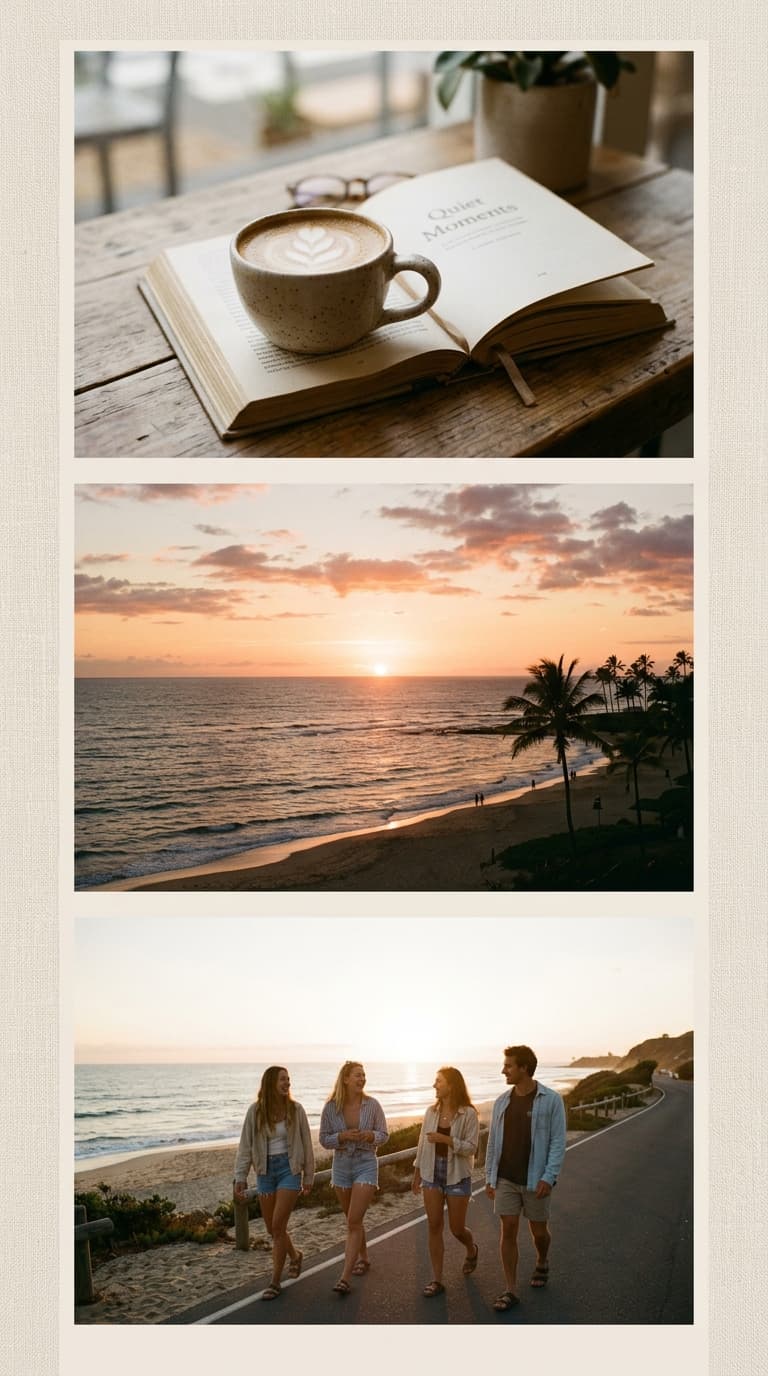
Minimalist 9:16 Aesthetic 3-Photo Vertical
मिनिमल एस्थेटिक 3-फ़ोटो वर्टिकल स्टेटस
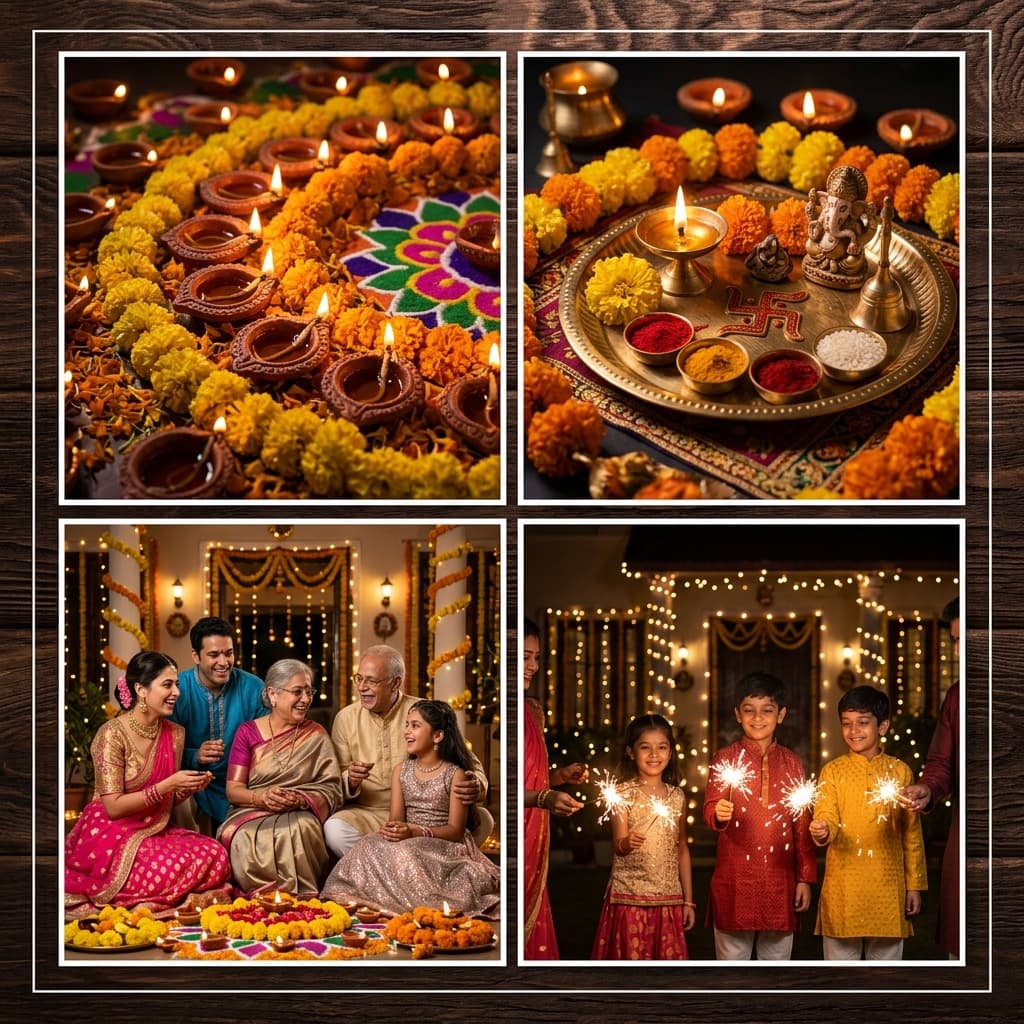
Golden Diya & Marigold Quad
चार दीयों और गेंदे के फूलों का सुनहरी ग्रिड
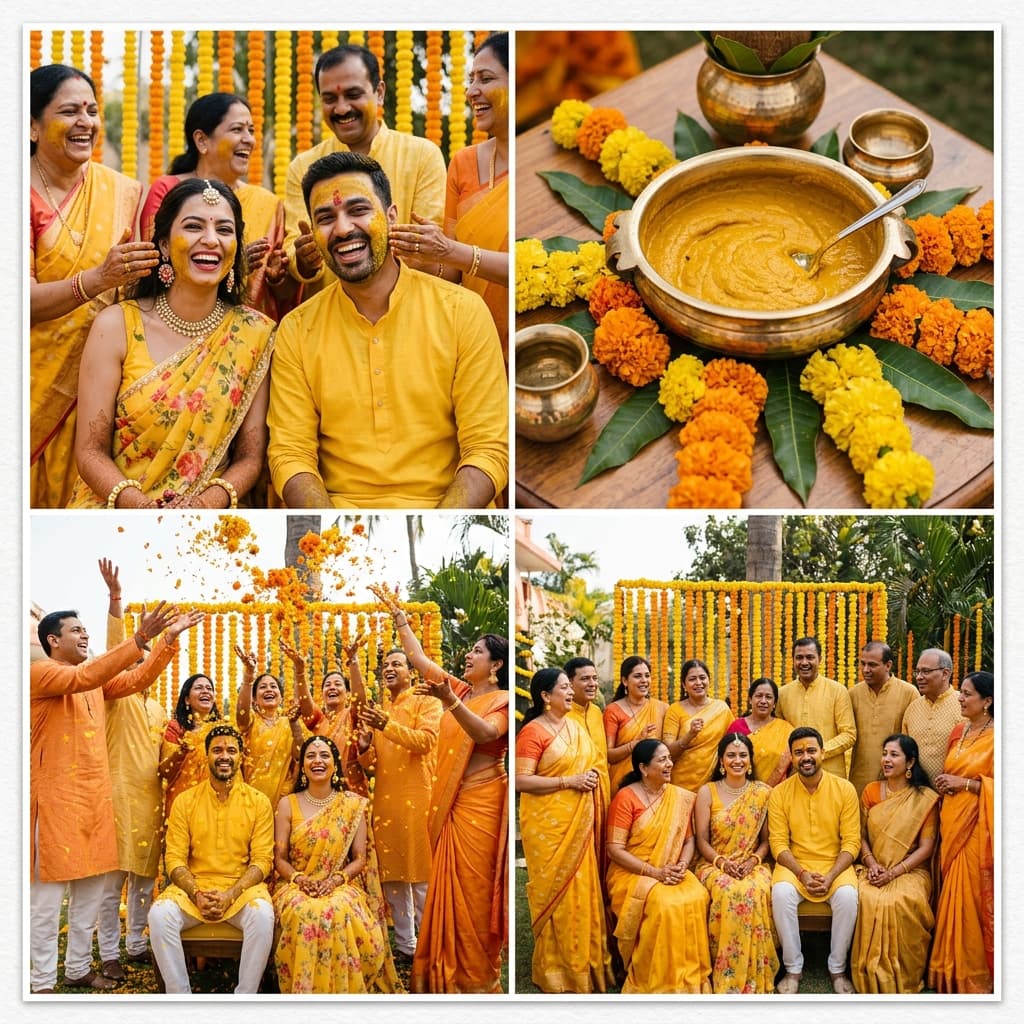
Haldi Ubtan & Marigold Floral Splash
हल्दी उबटन और गेंदे के फूलों का पीला कोलाज
Go beyond Google Photos' 6-slot limit with customizable borders, festive frames, and zero crop.
Recommended Workflow: Making Custom Collages with photocollage.in
- 1
Open Google Photos & Select Your Favorite Pictures
Open Google Photos on your mobile device or web browser. Download the high-resolution versions of your favorite pictures to your device if they are stored only in cloud backup.
- 2
Open photocollage.in in Any Browser
Visit photocollage.in on your phone or PC. You do not need to sign in with a Google account or purchase any cloud plan.
- 3
Upload As Many Photos As You Need
Tap 'Upload Photos'. Unlike Google Photos' strict limit, you can select and arrange your full gallery of moments seamlessly.
- 4
Choose Custom Aspect Ratios (1:1, 9:16, 4:5)
Pick the exact canvas size for your needs: 9:16 for WhatsApp Status and Instagram Reels, 1:1 for WhatsApp DP, or 4:5 for high-engagement Instagram feed posts.
- 5
Apply Festive Indian Borders & Devanagari Hindi Text
Select traditional marigold floral borders, royal wedding frames, or clean modern grids. Type festive greetings, names, or quotes in Hindi or English.
- 6
Download Full HD Collage with Zero Watermarks
Tap 'Download Collage'. Your creation is generated client-side and saved immediately in high-resolution, completely free.
सुझाया गया तरीका: photocollage.in पर मनपसंद कोलाज बनाएं
- 1
Google Photos से अपनी पसंदीदा तस्वीरें चुनें
Google Photos ऐप खोलें और जिन तस्वीरों का कोलाज बनाना है उन्हें फ़ोन में डाउनलोड या सिलेक्ट करें।
- 2
ब्राउज़र में photocollage.in खोलें
फ़ोन के Chrome या Safari में photocollage.in पर आएं। यहाँ किसी Google लॉगिन या पैसे की ज़रूरत नहीं है।
- 3
फ़ोटो अपलोड करें (कोई सख्त सीमा नहीं)
'फ़ोटो अपलोड करें' पर टैप करके तस्वीरें लोड करें — Google Photos की तरह यहाँ फ़ोटो की कमी का झंझट नहीं है।
- 4
WhatsApp स्टेटस (9:16) या DP (1:1) साइज़ चुनें
ज़रूरत के मुताबिक साइज़ चुनें ताकि WhatsApp या Instagram पर फ़ोटो कटे नहीं।
- 5
दिवाली, शादी या जन्मदिन का भारतीय फ़्रेम जोड़ें
सुंदर गेंदे के फूल, शाही शादी या मॉडर्न बॉर्डर चुनें और हिंदी में बधाई संदेश लिखें।
- 6
मुफ़्त डाउनलोड करें — कोई वॉटरमार्क नहीं
एक टैप में ओरिजिनल हाई-क्वालिटी में कोलाज सेव करें और सीधे WhatsApp पर शेयर करें।
Detailed Comparison: Google Photos vs photocollage.in
| Feature | Google Photos | photocollage.in |
|---|---|---|
| Maximum Photos | 2 to 9 photos only | Flexible (Grid & Multi-Photo) |
| Price | Free with Google One Paywall | 100% Free Forever |
| Layout Adjustability | Fixed AI layout (No custom resize) | Full control over spacing, padding & corners |
| Indian Festival Frames | None (Generic pastel only) | Diwali, Wedding, Rakhi, Haldi & Birthday |
| Hindi / Vernacular Typography | Not supported | Native Devanagari Hindi & English fonts |
| Custom Social Aspect Ratios | Fixed 1:1 or 4:3 | 9:16 WhatsApp Status, 1:1 DP, 4:5 Feed |
| Account Requirement | Google Account mandatory | No account or login required |
| Privacy | Requires cloud photo access | 100% Client-side (Photos never leave device) |
Google Photos Troubleshooting & Workarounds
1. Why did Google Photos crop out someone's head or border?
Google's algorithm prioritizes uniform aspect ratios over individual composition. To avoid heads being chopped off, download the images to your gallery and use photocollage.in, where you can drag, zoom, and reposition each photo precisely inside its frame.
2. How do I get Google Photos images into photocollage.in?
Open Google Photos → select the images → tap the three dots icon → tap Download. The photos will be placed directly in your phone's “Download” or “Restored” album, ready to upload in photocollage.in.
Want festive frames and unlimited layout control?
Google Photos की सीमाओं को छोड़ें — बिना किसी ऐप के तुरंत कोलाज बनाएं।